

The transformative potential of GenAI technology means that the “future of work” likely involves humans working alongside GenAI co-workers to solve complex problems. At Mentorica.AI, we believe in leveraging human-AI complementarity to outperform humans or AIs alone. Therefore, our student portal natively supports both individual and team-based learning with AI agents. In this article, we will demonstrate how to teach with team-based AI activities and train your students to work effectively with GenAI co-workers.
Setting Up Team-Based AI Activities
To set up an AI activity for student teams, all you need is to specify the team membership in the “Group” field under the “Students” tab in your instructor portal. Click “Enable Groups” to make this field visible. You can either enter group names along with student names and email into the same csv roster file and upload it, or you can manually enter / modify group names later. Please note that we currently support one group set for each course.
For example, suppose you want to teach the “Global Bank” AI activity and three students – Amy, Bob, and Charlie – are in the same team called “group 1”. Under the “Students” tab, you need to specify “group 1” for these three students.
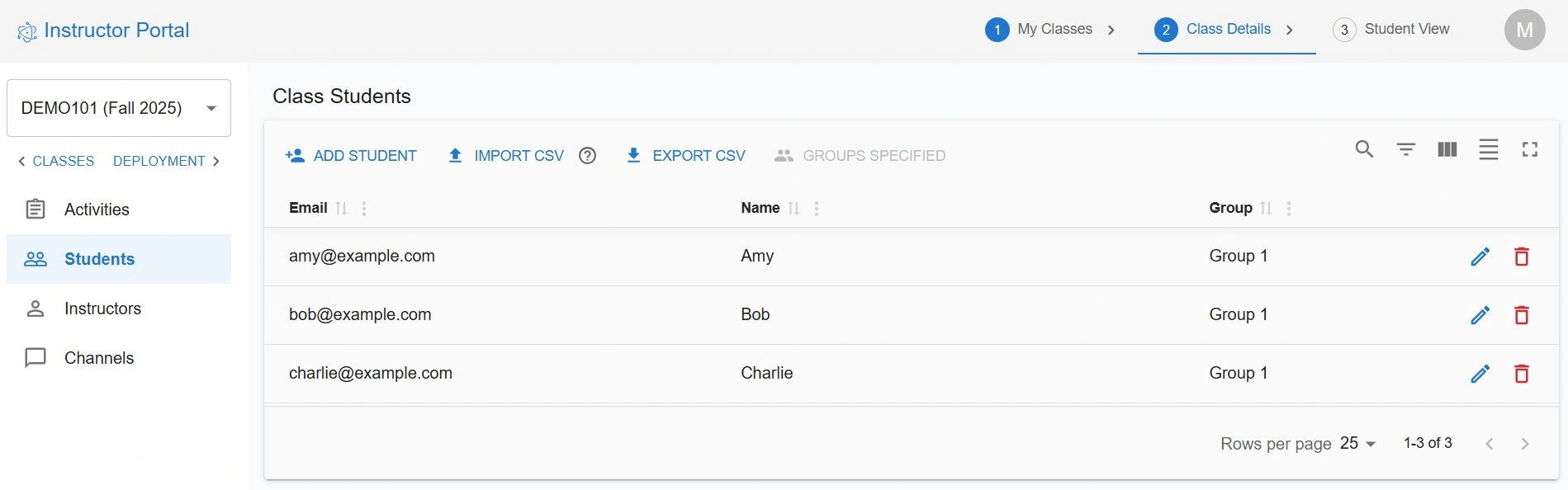
That’s it! These three students will be automatically assigned to the same team channel along with the “Global Bank” AI agent.
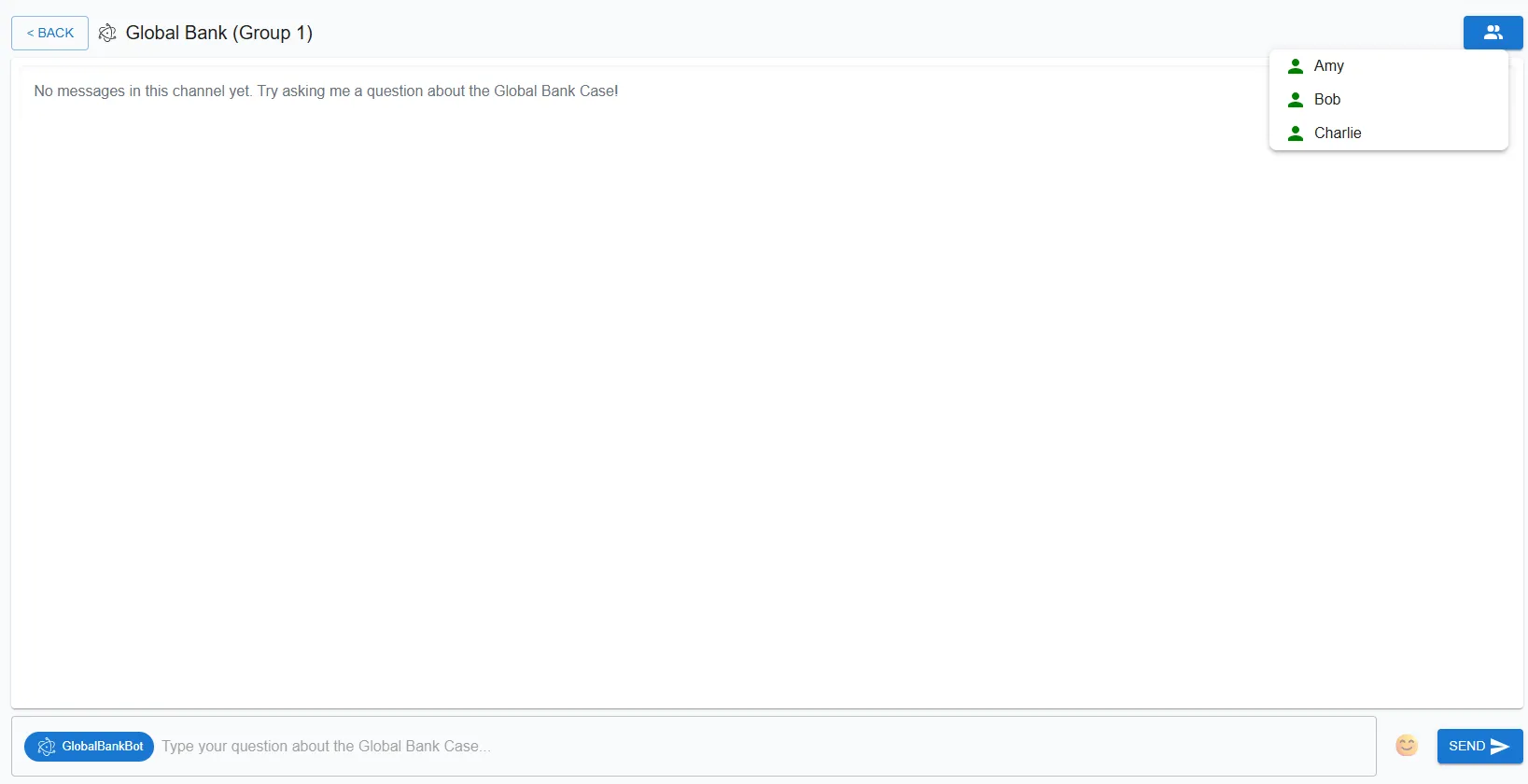
Importantly, if you have specified a group set, then all AI activities will be assigned at the group level by default, unless you explicitly toggle the “Individual Activity” control for the AI activities that you wish to keep at individual level. Therefore, to have a mix of group and individual AI activities, please remeber to go to the “Activites” tab, then edit the activities you wish to assign to individuals and set them as “Individual Activity”. Meanwhile, if you have no group set specified, then this setting does not matter – all AI activities will be assigned to individual students.
Chatting in a Team Channel
From the students’ perspective, interacting with an AI agent individually vs. in a team setting differs in an important way, namely that students can talk to each other within a team (brainstorming a solution, debating different ideas, managing team logistics, etc.).
In a student wants to send a message to other team members that don’t require an AI response, the student can click on the blue card at the beginning of the chat input box (with AI agent’s name on it) to “mute the AI” (see screenshot below). Any messages sent with AI muted would not receive an immediate AI response.
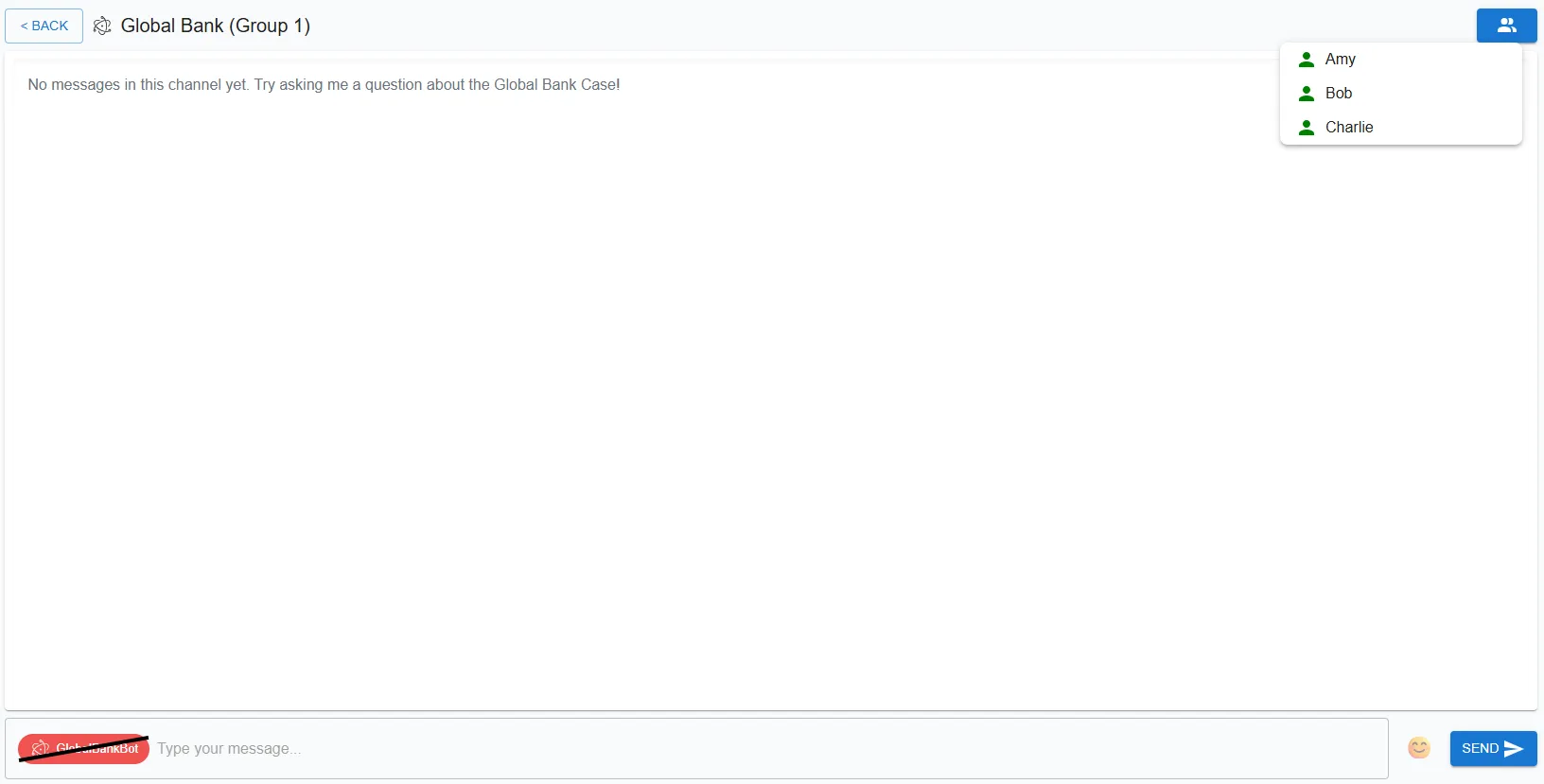
However, just like a slient human co-worker still pays attention to teammates’ discussions, the muted AI agent still “listens” to the conversations among the students.1 This emulates an engaging AI co-worker that is ready to jump in when asked. With the AI unmuted, students can ask it questions about their inter-personal conversations (e.g., “Between Amy and Bob, whose solution you think makes more sense?”).
-
Technically, this means that student conversations among themselves are added into the AI’s context window. ↩